How to create a POR
First, some basics:
- Each POR is linked to a Budget and a Vendor.
- This guide assumes that the required Budgets are already setup by the Approvers/Admins and that the Vendor is not a new vendor.
To learn about setting up budgets and new vendors, check these reference articles: Create a Budget and Add a new Vendor
Create a Purchase Order Request (POR)
- Login to the organization's Mr.Albert account and go to the "Purchase order requests" section.

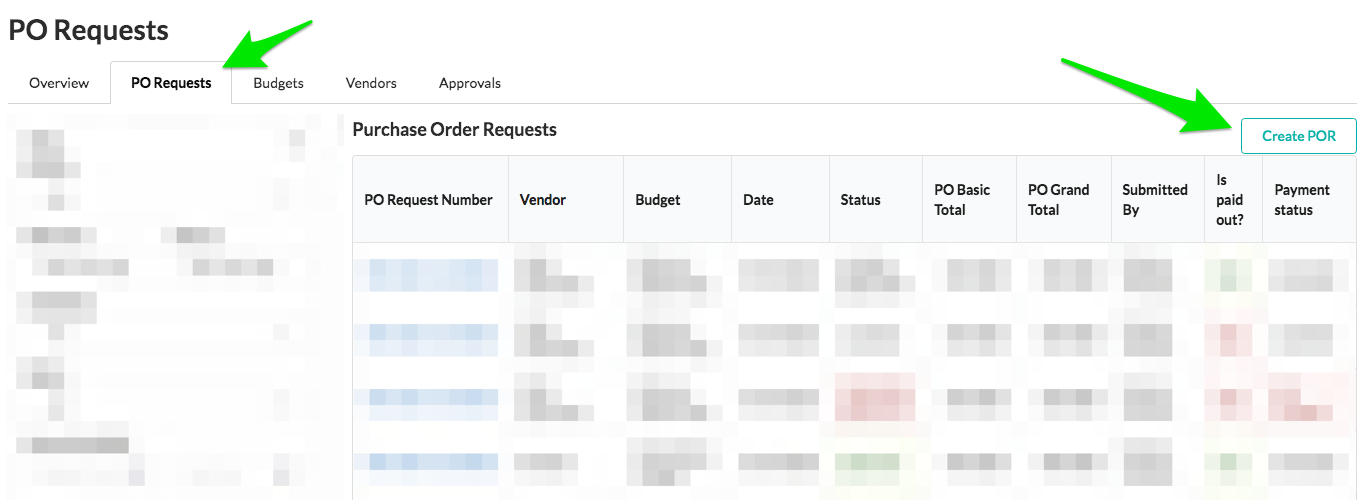
- In the "PO Requests" tab, click the "Create POR" button.
- Fill in the details for the POR.
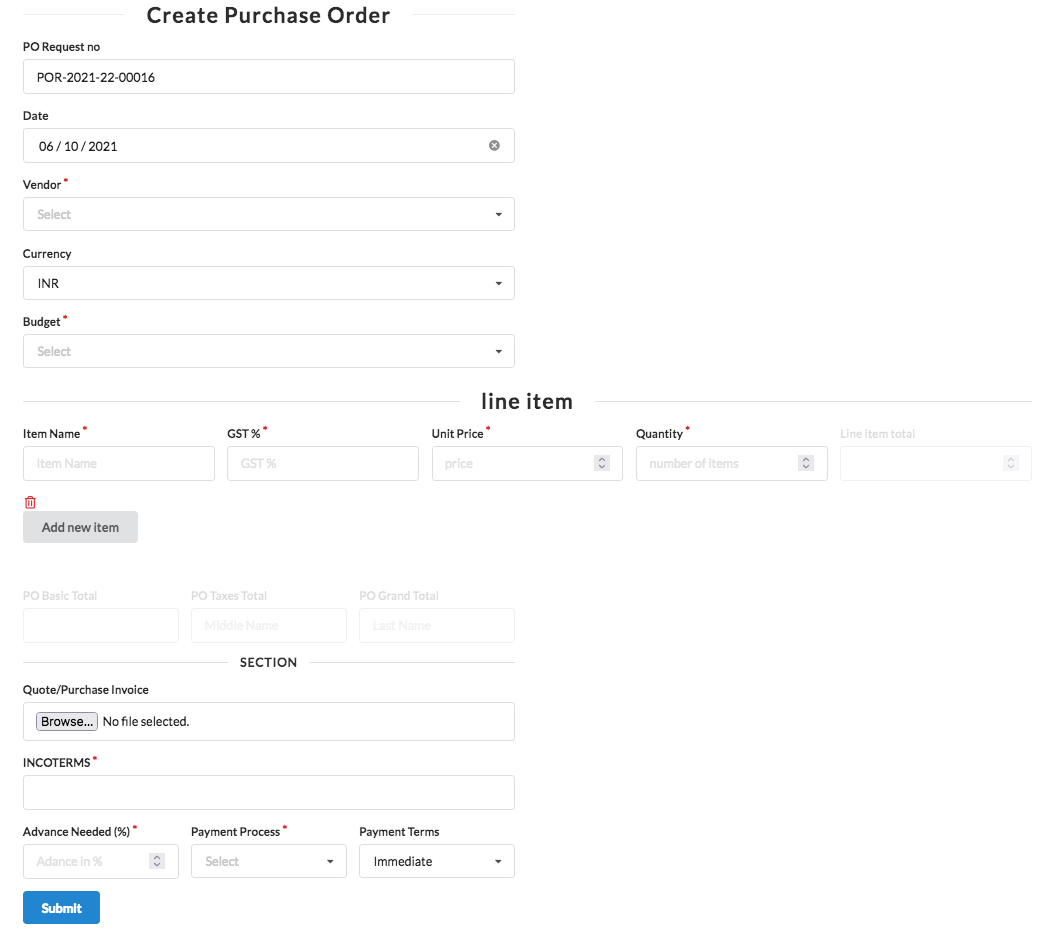
Tip: For detailed information on all the fields in the Create POR page, read create-edit-por
- Click the "Submit" button after entering the details. The POR will be created and you will be able to see it in the table in the "PO Requests" tab. Also, a notification is sent automatically to the L1 Approver whenever a new POR is created.